Pico-UTM 100 / Dual Ark-UTM 16 / Tera-UTM 12:
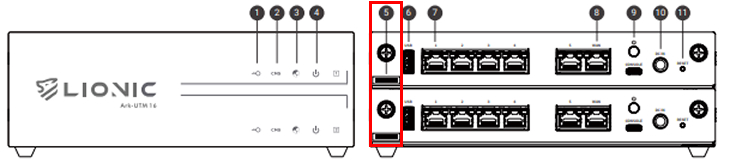
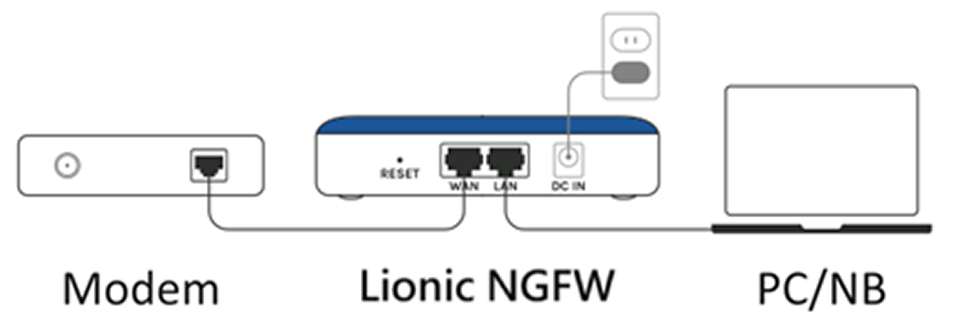
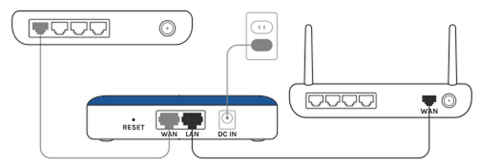
Step 1: Connect the Lionic NGFW WAN port to a network that can automatically assign an IP address (DHCP).
Step 2: Connect the Lionic NGFW LAN port to your computer using an Ethernet cable.
Step 3: Open a web browser and go to the corresponding management URL:
- Pico-UTM 100: https://mypico.lionic.com
- Dual Ark-UTM 16: https://myark.lionic.com
- Tera-UTM 12: https://mytera.lionic.com
LionFilter 200:
Step 1: Connect the Lionic NGFW LAN MGMT port to your computer using an Ethernet cable.
Step 2: Configure your computer’s network settings to Obtain an IP address automatically (DHCP).
Step 3: Open a web browser and go to https://myfilter.lionic.com to access the Lionic NGFW management interface.
Note: By configuring the MGMT port with a dedicated IP address, you can reduce the risk of losing access to the management interface due to misconfiguration.
If the Lionic NGFW cannot obtain an IP address:
Step 1: Connect the Lionic NGFW LAN port or LionFilter 200 LAN 1~3 to your computer with an Ethernet cable.
Step 2: Manually configure your computer’s network settings:
-
IP Address: 10.254.254.1 ~ 10.254.254.253
-
Subnet Mask: 255.255.255.0
Step 3: Open a web browser and enter http://10.254.254.254 to access the Lionic NGFW management interface.